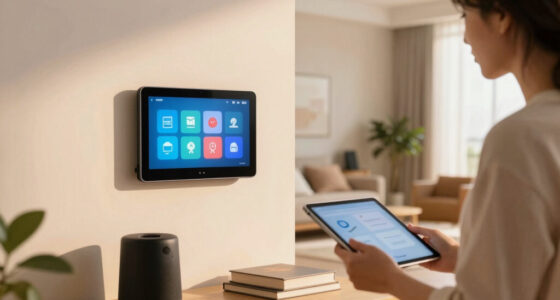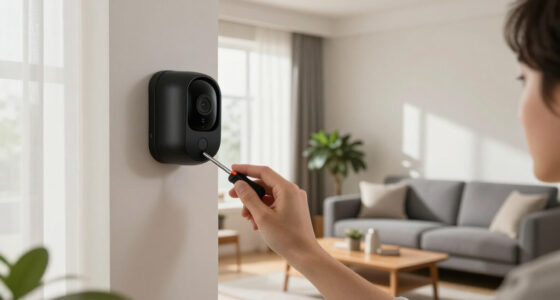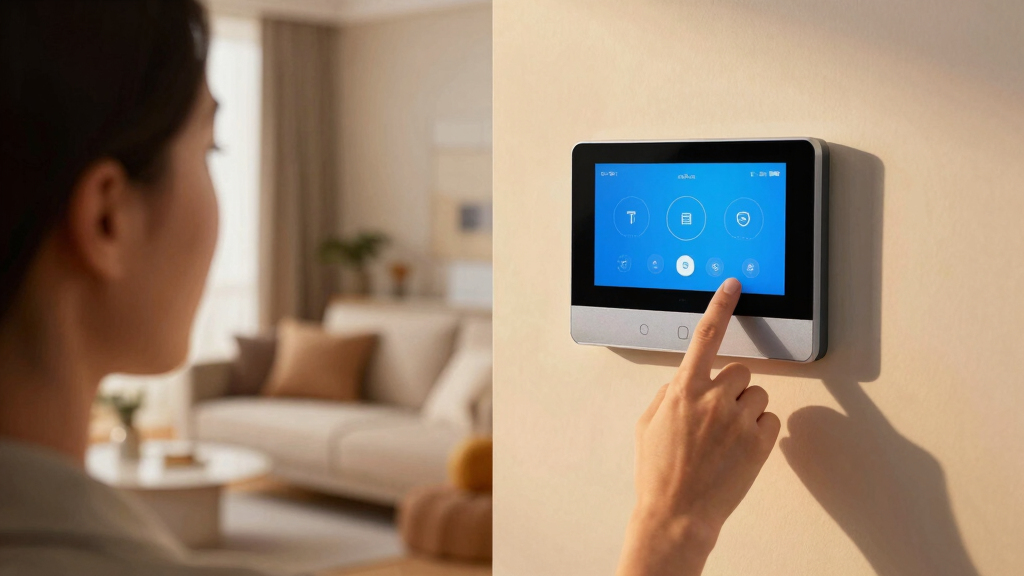

This guide provides step-by-step instructions for setting up smart home devices in a classroom. It is designed for educators, IT staff, or anyone responsible for classroom technology integration. By following these steps, you’ll enable remote control, automation, and enhanced interaction within the learning environment, ensuring a smooth setup process.

Get home appliances delivered free — and shop member deals
- Fast, free delivery on millions of items
- Access to Prime Big Deal Days deals on October 6–7
- Prime Video, Amazon Music and more included
Difficulty: Intermediate | Time: 1-2 hours
What You’ll Need
Tools & Materials:
- Smart home hub or controller
- Wi-Fi router
- Smart devices (lights, projectors, speakers)
- Smartphone or tablet with app access
- Ethernet cable (optional)
Knowledge:
- Basic understanding of Wi-Fi networks
- Familiarity with app installation and configuration
- Basic troubleshooting skills
Ensure your Wi-Fi network is stable and has sufficient bandwidth. Confirm that all devices are compatible with your chosen smart home platform (e.g., Google Home, Amazon Alexa, Apple HomeKit). Prepare a list of devices to install and their locations before starting.
As an affiliate, we earn on qualifying purchases.
Before You Start
Turn off any devices that might interfere with setup, and verify that your Wi-Fi network is operational. Make sure you have administrator access to your network and smart device accounts. Read the device manuals for specific requirements or safety instructions.
As an affiliate, we earn on qualifying purchases.
Step-by-Step Instructions
Step 1: Connect your smart home hub to power and network
Plug in your smart home hub or controller and connect it to your Wi-Fi network using an Ethernet cable for stability, or configure Wi-Fi during setup via the app.
Tip: Use Ethernet if possible for a more reliable connection during initial setup.
Check: The hub powers on and appears online in the device app or interface.
Step 2: Download and install the device management app
Download the official app for your smart home platform (e.g., Google Home, Alexa, Apple Home) on your smartphone or tablet. Create or log into your account.
Tip: Ensure your device is connected to the same Wi-Fi network as the hub during setup.
Check: App successfully detects your hub or controller, and you can access the device dashboard.
Step 3: Add smart classroom devices to the platform
Follow the app prompts to add each device by selecting their model or scanning QR codes. Ensure each device is powered and within range.
Tip: Add devices one at a time and verify each connection before proceeding to the next.
Check: All devices show as connected and ready in the app’s device list.
Step 4: Configure device groupings and automation rules
Create device groups (e.g., lights, projectors, speakers) and set automation rules such as schedules or triggers (e.g., turn on lights at class start).
Tip: Test automation by manually triggering it to confirm correct operation.
Check: Automation executes correctly, and grouped devices respond as expected.
Step 5: Test device control and automation in the classroom
Operate devices via the app or voice commands, verifying they respond accurately. Test automation triggers during scheduled times.
Tip: Include a few different control methods (app, voice, manual switch) to confirm flexibility.
Check: All devices respond correctly and reliably to control commands.
Wi-Fi enabled classroom projector
As an affiliate, we earn on qualifying purchases.
As an affiliate, we earn on qualifying purchases.
Common Mistakes to Avoid
- Adding incompatible or unsupported devices — Check device compatibility with your smart home platform before purchase and setup.
- Poor Wi-Fi signal causing device disconnects — Position the hub and devices within strong Wi-Fi range; consider Wi-Fi extenders if needed.
- Not assigning descriptive names to devices — Name each device clearly during setup to avoid confusion during control or troubleshooting.
- Overcomplicating automation without testing — Test each automation step individually before combining multiple triggers or actions.
voice-controlled classroom speakers
As an affiliate, we earn on qualifying purchases.
As an affiliate, we earn on qualifying purchases.
Troubleshooting
Problem: Device not appearing in the app
Solution: Ensure the device is powered, in range, and the app is refreshed; try re-adding the device.
Problem: Device responds slowly or intermittently
Solution: Check Wi-Fi signal strength, restart the device, and ensure firmware updates are installed.
Problem: Automation does not trigger as expected
Solution: Verify trigger conditions, test automation manually, and review device response logs in the app.
What Success Looks Like
All smart devices are integrated into the platform, responding reliably to control commands via app or voice, and automation rules execute as scheduled. The classroom environment features seamless device operation, with easy control for educators.
Next Steps
Regularly update device firmware and app software. Document device locations and configurations. Train staff or students on device control. Plan periodic testing and maintenance to sustain reliable operation.
Frequently Asked Questions
Can I add devices from different brands to the same platform?
Compatibility depends on your platform; many support multiple brands, but verify device compatibility before purchase.
What should I do if a device stops responding?
Restart the device, check Wi-Fi connection, and re-add it if necessary. Confirm firmware is up to date.
Is it safe to leave smart devices connected all the time?
Yes, most devices are designed for continuous use. Follow manufacturer safety instructions and keep firmware updated.
Fall yard work Picks
leaf blowers
As an affiliate, we earn on qualifying purchases.