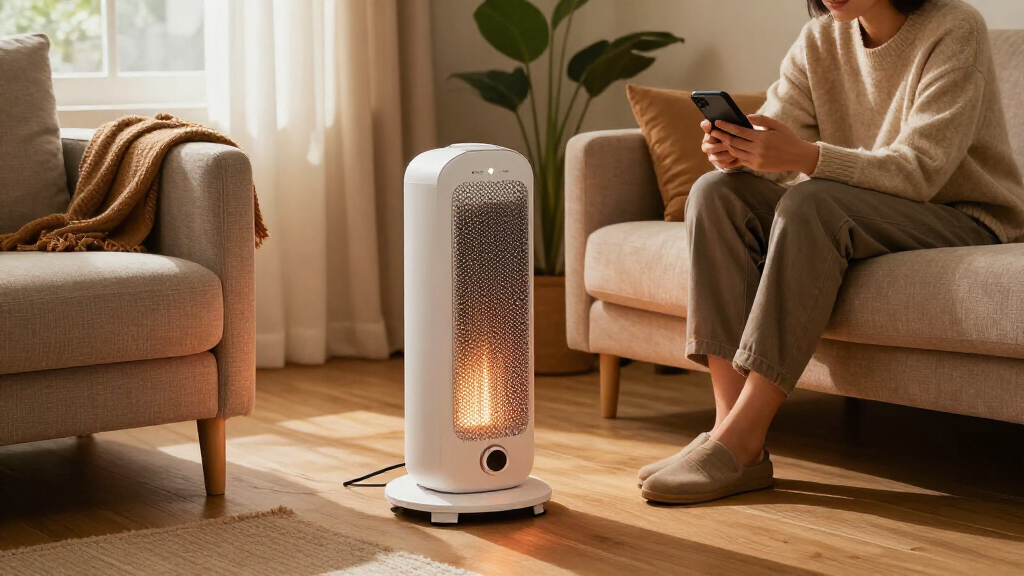

Set up a smart space heater so you can control its heat, thermostat, and schedule from the heater’s panel, a phone app, or a compatible smart home system. This guide is for first-time owners who can use a smartphone and follow basic electrical safety instructions. Allow about 20-40 minutes, including time to connect the heater and test its settings.

Get home appliances delivered free with Prime
- Fast, free delivery on millions of items
- Prime Video, Amazon Music and more included
- Member-only deals all year

FLANUR 1500W Smart PTC Ceramic Tower Space Heater
- ✔ Power: 1500W
- ✔ Heating element: PTC ceramic
- ✔ Stated coverage: Up to 300 sq. ft.

FLANUR 1500W Smart Ceramic Space Heater with WiFi and Voice Control
- ✔ Power: 1500W
- ✔ Heating element: PTC ceramic
- ✔ Stated coverage: 160–200 sq. ft.

SereneLife Smart Wi-Fi PTC Ceramic Space Heater, 1500W, White
- ✔ Power: 1500W
- ✔ Heating type: PTC ceramic, forced air
- ✔ Dimensions: 5.9 × 5.9 × 9.52 in.
Difficulty: Beginner | Time: 20-40 minutes
What You’ll Need
Tools & Materials:
- Smart space heater with its user manual
- Smartphone or tablet with the manufacturer’s app installed
- Home Wi-Fi details, if the heater connects to Wi-Fi
- Clear, level floor space near a suitable wall outlet
Knowledge:
- Basic use of a smartphone app
- How to identify your home Wi-Fi network and enter its password
Read the heater’s manual before plugging it in. Use the heater only in a dry indoor space and follow its rules for clearances, outlet type, and smart features. Do not use an extension cord, power strip, or adapter unless the manual specifically permits it. If the manual or heater label is missing, contact the manufacturer before using the device.
FLANUR 1500W Smart PTC Ceramic Tower Space Heater
This FLANUR tower is the most complete option for buyers who want connected control without giving up a physical remote. It supports the Havaworks app, Alexa and Google Assistant, and a remote, so we can choose the control method that suits the moment. That flexibility is its clearest advantage over the other FLANUR: the first model relies on app or voice control and has no remote. With a stated coverage of up to 300 square feet, it also makes the strongest case for serving a larger room, although actual comfort depends on the space.Its 29-inch tower form and 70-degree oscillation are better suited to a regular spot where warmth needs to spread across the room than to a heater we plan to tuck away after every use. The 23 dB minimum noise claim is notably low on paper, and ECO mode, three heat levels, and fan-only operation provide more ways to manage everyday use. Those advantages come with familiar constraints: app control requires 2.4GHz Wi-Fi, and the unit is specified for dry indoor areas only. Compared with the compact SereneLife, this is the better room-oriented choice; compared with the other FLANUR, it adds a remote and a larger stated coverage area.
Pros:
- App, Alexa, Google Assistant, and remote control
- Manufacturer-stated coverage up to 300 square feet
- 70-degree oscillation and multiple heat modes, including ECO and fan-only
- Tip-over, overheat, and child-lock protections
Cons:
- App control requires 2.4GHz Wi-Fi
- Specified for indoor dry-area use only
- Tower form takes more dedicated floor space than the compact SereneLife
Best for: Buyers seeking a tower heater for a larger dry indoor room, with app, voice, and remote control options.
Not ideal for: People who need a compact tabletop heater, have no 2.4GHz Wi-Fi for app features, or want to use a heater in a bathroom.
Bottom line: We rank this first for its combination of stated room coverage and the most flexible control options in the lineup.
“We rank this first for its combination of stated room coverage and the most flexible control options in the lineup.”
FLANUR 1500W Smart Ceramic Space Heater with WiFi and Voice Control
Choose this FLANUR if app scheduling and voice commands matter more than having a remote. Its Havaworks app and compatibility with Alexa and Google Assistant provide the core connected conveniences, with a 12-hour timer and ECO mode for managing operation. Like the top-ranked FLANUR tower, it offers 70-degree oscillation and several safety protections. Its stated coverage is narrower, at 160–200 square feet, so it is a more natural fit for a modest room than for buyers drawn to the tower’s claim of up to 300 square feet.The feature that gives this model a distinct edge is its 30-second cool-down cycle, alongside dual fuse protection and a 24-hour auto shut-off. Those details may appeal to a buyer who values its specified shutdown and safety features. Yet it has a meaningful convenience compromise: there is no remote, while both the other FLANUR and SereneLife include one. That leaves app or voice control as the alternatives when we are away from the unit. It also requires 2.4GHz Wi-Fi for connected features and is not recommended for soft carpets or bathrooms, which narrows placement options compared with a buyer’s expectations for a general-purpose portable heater.
Pros:
- Havaworks app with compatible Alexa and Google Assistant control
- ECO, high, low, and fan-only modes with adjustable thermostat
- 30-second cool-down cycle and several listed safety protections
- 70-degree oscillation and a carry handle
Cons:
- Remote control is not included
- 2.4GHz Wi-Fi is required for app control
- Not recommended for soft carpets or bathrooms
Best for: Buyers who want app scheduling and voice control for a smaller indoor space and are comfortable operating the heater without a remote.
Not ideal for: Anyone who wants remote control, needs a stated coverage area above 200 square feet, or plans to place the heater in a bathroom or on soft carpet.
Bottom line: We recommend it for connected control in a smaller room, provided app or voice operation works for your household without a remote.
“We recommend it for connected control in a smaller room, provided app or voice operation works for your household without a remote.”
SereneLife Smart Wi-Fi PTC Ceramic Space Heater, 1500W, White
SereneLife takes a different approach from the two FLANUR towers: it is a small, light heater designed for flexible placement. At 5.9 by 5.9 by 9.52 inches and 2.9 pounds, it is easier to carry between rooms or set on a tabletop than either tower-style alternative. It also includes both app and remote control, so compact size does not mean giving up a handheld option. For a desk area, bedside spot, or other personal zone, those practical advantages may matter more than broad oscillation or a tall design.The tradeoff is less certainty about room-scale performance. SereneLife provides no coverage figure in the supplied specifications, whereas both FLANUR models state areas and the second FLANUR reaches up to 300 square feet. Its listed modes are Power Heat, ECO, and Fan Only, with a thermostat range of 41–95°F and a 12-hour timer. The supplied description says three speeds, but it does not detail their output levels. As with the FLANUR models, it includes overheat and tip-over protection plus a child lock; its listed use is indoor only. We would choose it for portability and a small footprint, not when a stated coverage target is central to the decision.
Pros:
- Compact dimensions and 2.9-pound weight for easy relocation
- Includes both Wi-Fi app and remote control
- ECO, fan-only, and adjustable thermostat operation
- Overheat, tip-over, and child-lock protections
Cons:
- No room coverage figure is provided in the supplied specifications
- Indoor use only
- Does not list oscillation, unlike both FLANUR models
Best for: Buyers who want a lightweight heater for a desk, bedside area, or moving between indoor rooms, with app and remote controls.
Not ideal for: People prioritizing a stated room coverage area, a tall oscillating tower, or an explicitly specified broad-room heating recommendation.
Bottom line: We pick SereneLife for portable personal heating, while buyers focused on room coverage should compare the FLANUR towers first.
“We pick SereneLife for portable personal heating, while buyers focused on room coverage should compare the FLANUR towers first.”
As an Amazon Associate we earn from qualifying purchases.
Before You Start
Choose a spot where the heater can stand level and its air outlet will not face curtains, bedding, furniture, clothing, or other items. Keep the manufacturer’s required clearance on every side, above, and in front of the heater. Keep it away from water and from busy walkways where it could be bumped or tipped.
Check the heater, plug, cord, and wall outlet for damage. Do not use a damaged heater or a loose, hot, or discolored outlet. Keep the heater’s own controls accessible so you can turn it off if the app or network stops working.
Step-by-Step Instructions
Step 1: Choose a safe location
Place the heater upright on a firm, level, nonflammable surface, following the distances in its manual. Leave its air intake and outlet unobstructed. Keep it out of bathrooms, damp areas, and places where children or pets could knock it over unless the manual explicitly rates the model for that setting.
Tip:Do not place the heater beneath an outlet, where its warm airflow could heat the cord or nearby materials.
Check: The heater stands steadily, has the listed clearances, and blows toward an open area.
Step 2: Connect the heater to power
Plug the heater directly into a wall outlet that matches the manual’s requirements. Do not plug another high-power appliance into the same outlet or use a timer plug unless the heater’s instructions allow it. Keep the cord away from the heater’s hot surfaces and from walking paths.
Tip:If the plug does not fit firmly or the outlet feels warm, unplug the heater and use a different suitable outlet. Do not force the plug.
Check: The display or indicator lights turn on, and the plug and outlet remain cool and secure.
Step 3: Install the manufacturer’s app
Find the app named in the manual or on the manufacturer’s official site. Install it from your phone’s app store, open it, and sign in or create an account if prompted. Allow only the permissions the app needs for setup, such as Bluetooth or local network access.
Check: The app opens to a device setup screen or a list of devices.
Step 4: Pair the heater with the app
Follow the app’s add-device instructions. Put the heater into pairing mode using the specified button or control, then select the heater when it appears in the app. Enter your Wi-Fi name and password if requested. Many heaters require a 2.4 GHz Wi-Fi network; check the manual before choosing a network.
Tip:Keep the phone close to the heater during pairing. If the app asks for Bluetooth, location, or local network access during setup, allow the requested access while pairing.
Check: The app shows the heater as connected and displays its current status or controls.
Step 5: Set up smart home access if needed
Open the heater app’s integration settings or your smart home platform’s instructions to connect the heater. Sign in to the correct account and add the heater or manufacturer service. Review which controls the integration exposes before relying on voice commands.
Tip:Smart home features depend on the heater model, app, and platform. Skip this step if you plan to use only the manufacturer’s app and the heater’s own controls.
Check: The heater appears in the chosen smart home app, and its available controls match the manufacturer’s description.
Step 6: Configure temperature and safety settings
Select a heat mode and moderate target temperature using the heater’s panel or app. Review the manual’s instructions for child lock, tip-over protection, overheat protection, and eco mode. Turn on safety features that suit the room and household, and locate the physical power control so you can operate it.
Tip:A thermostat reading can differ from the room’s actual temperature because of heater placement, drafts, or sensor location. Adjust the target gradually and check comfort in the room.
Check: The app and heater display the selected mode and target temperature, and you can still reach the physical controls.
Step 7: Test app controls and heating
Start the heater using the app or panel while someone stays in the room. Change the target temperature or mode, then turn the heater off. Confirm that each command reaches the device and that warm air flows from the outlet when heating is active. Keep the heater in view during this first test.
Tip:Stop using the heater if you notice a burning smell that persists, unusual noise, sparks, a hot plug, or a tripped breaker. Unplug it if you can do so safely, then follow the manual or contact the manufacturer.
Check: The heater responds to commands, produces heat in heating mode, and shuts off when told to do so.
Step 8: Create and verify a schedule
Open the app’s schedule or timer settings if you want scheduled heating. Choose the days and start and stop times, then set the desired temperature or mode. Save the schedule and check the displayed time zone and clock on your phone. Keep the heater’s placement and clearances safe for the full period it may run.
Tip:Start with a short schedule you can observe. Avoid scheduling operation when the heater would be unattended unless the manufacturer permits it and you are comfortable with its safety instructions.
Check: The saved schedule appears in the app with the intended days, times, and temperature.
Common Mistakes to Avoid
- Placing the heater too close to curtains, furniture, or bedding. — Follow the manual’s clearances and keep the air intake and outlet open before every use.
- Using an extension cord or power strip. — Plug the heater directly into a suitable wall outlet unless the manual explicitly says otherwise.
- Selecting the wrong Wi-Fi network or band during setup. — Check whether the heater requires 2.4 GHz Wi-Fi and confirm the network name and password before pairing.
- Relying on app control without knowing how to turn the heater off locally. — Learn the heater’s physical power control and keep it accessible, even after pairing succeeds.
Troubleshooting
Problem: The heater does not appear in the app.
Solution:
Confirm that the heater is powered on and in pairing mode. Move the phone closer, enable the permissions requested for setup, and retry using the app’s instructions. Restart the pairing process as described in the manual.
Problem: Wi-Fi pairing fails.
Solution:
Check the Wi-Fi password and confirm the required network band in the manual. Move the heater or router closer for setup, and retry. If the router combines network bands under one name, consult the router or heater instructions for a compatible setup method.
Problem: The app shows the heater offline.
Solution:
Check that the heater has power and that your phone can reach the internet. Reopen the app, check the router connection, and follow the manufacturer’s reconnection steps. Use the heater’s panel to turn it off if app control remains unavailable.
Problem: The heater runs but the room does not reach the target temperature.
Solution:
Check that doors and windows are closed, the heater’s airflow is unobstructed, and the selected mode is intended for heating. Compare the room temperature with the heater’s sensor reading. If the heater repeatedly shuts off or behaves unexpectedly, stop using it and contact the manufacturer.
What Success Looks Like
The heater is stable in a clear, dry location and plugged directly into a suitable wall outlet. Its app shows it connected, the heater responds to on, off, mode, and temperature commands, and any saved schedule displays the correct times. During a supervised test, it heats and shuts off as commanded, with no unusual smell, noise, hot plug, or other warning sign.
Next Steps
Before each use, check that the heater remains upright, its airflow is clear, and its cord and plug look undamaged. Clean filters or vents only as the manual directs and only when the heater is off, unplugged, and cool. Review schedules when household routines change, and install app or firmware updates through the manufacturer’s instructions. Stop using the heater if it is damaged or shows warning signs, and contact the manufacturer or a qualified repair service.
Frequently Asked Questions
Can I use a smart plug with a space heater?
Use a smart plug only if both the heater and smart plug manufacturers explicitly approve that combination and its electrical rating. Many heaters should connect directly to a wall outlet. A smart heater’s built-in app controls are usually the supported way to schedule operation.
Does a smart space heater need Wi-Fi to work?
Many models still work from their physical controls when Wi-Fi is unavailable, but app access, voice control, and remote schedules may stop working. Check the manual for the functions available offline.
Why does my heater require 2.4 GHz Wi-Fi?
Some heater models support only 2.4 GHz networks. Check the model’s setup requirements and select a compatible network during pairing.
Is it safe to run a space heater while I am away?
Follow the manufacturer’s instructions and local fire safety guidance. Do not leave the heater running unattended unless its documentation permits that use and you have set it up as directed. Keep it away from flammable materials and never rely on remote controls to replace basic safety checks.